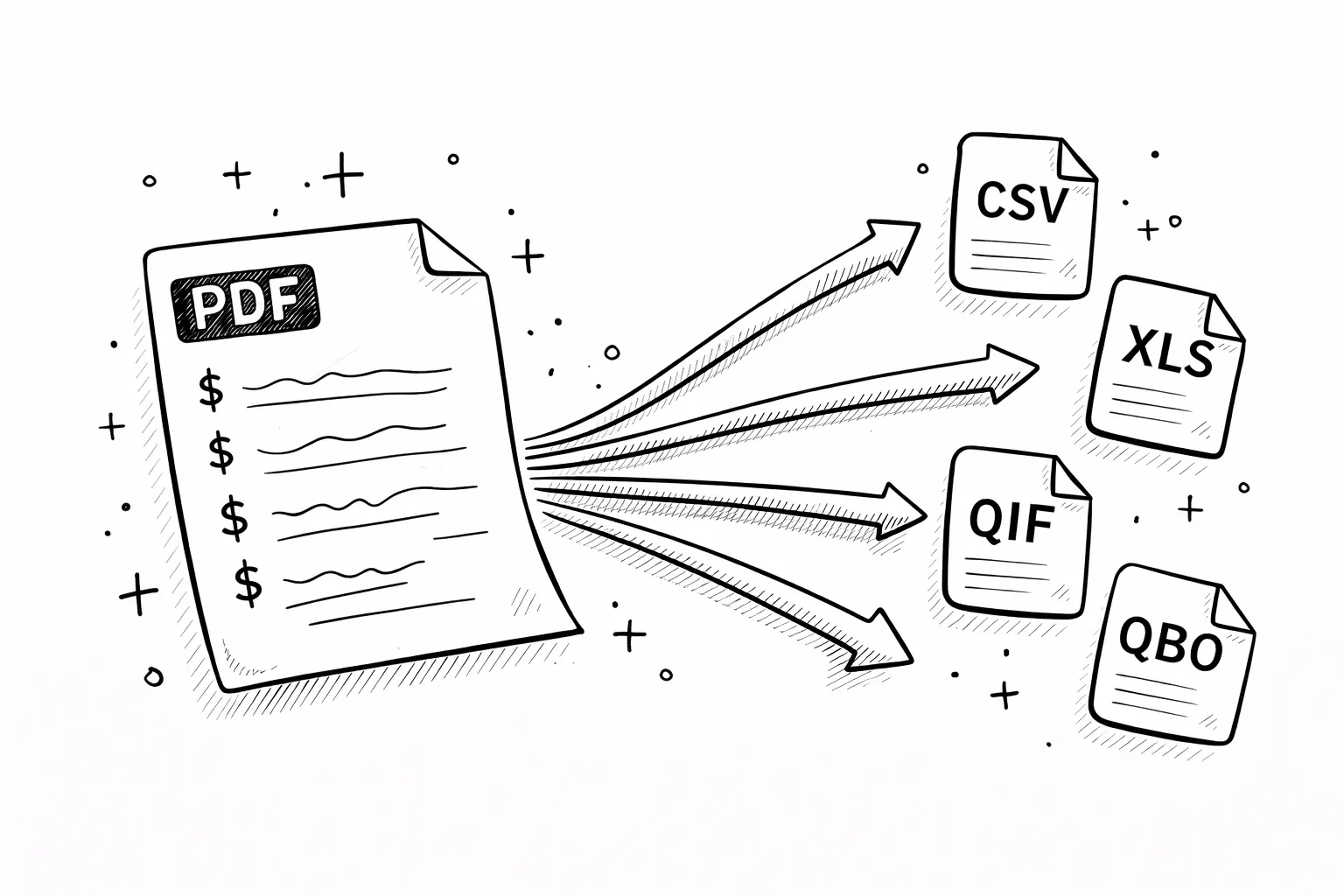
Free tool
Analyze your bank statement in 30 seconds
AI categorizes every transaction
Sankey money flow chart
Export to CSV / Excel
PDF never stored
Try it free →
No account required
← Blog
GuideMarch 8, 2026·6 min read

How to Paste CSV Into Excel (and Open CSV Files Without Breaking Your Data)

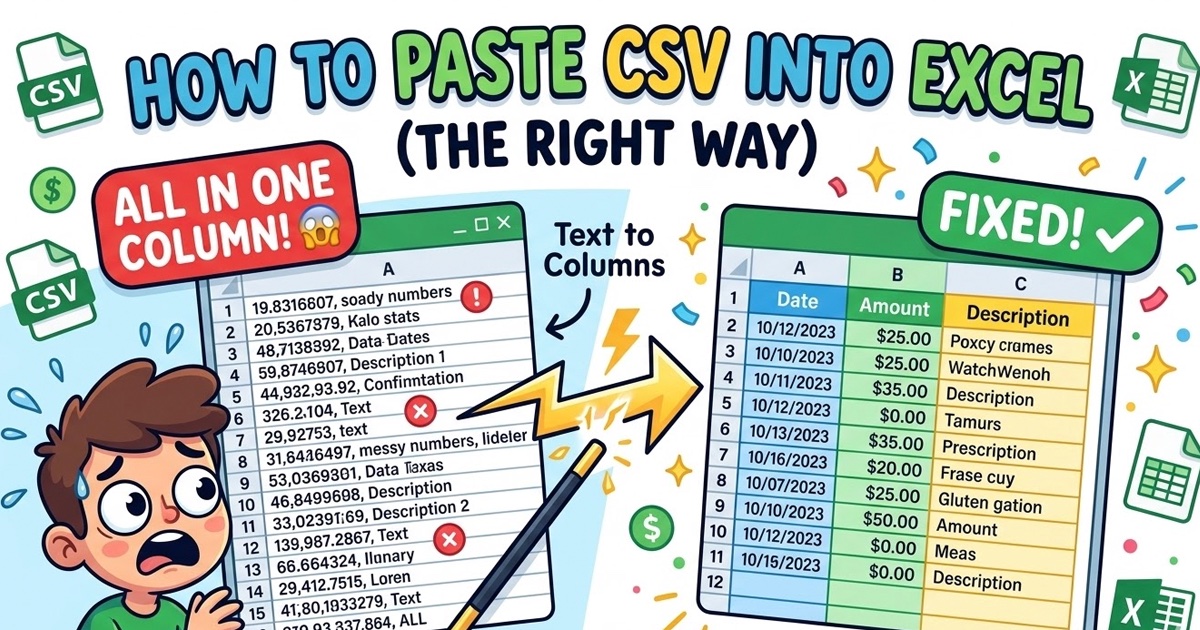
You copy CSV data, paste it into Excel, and everything lands in a single column. Or you double-click a .csv file and Excel mangles your dates, strips leading zeros, and turns account numbers into scientific notation. This guide covers every method for getting CSV data into Excel correctly — whether you're pasting from a clipboard or opening a file.
In this guide
  1. Method 1: Paste CSV and use Text to Columns
  2. Method 2: Open a CSV file directly in Excel
  3. Method 3: Import CSV via the Data tab (best method)
  4. Common problems and how to fix them
  5. Bank statement CSV — special considerations
  6. FAQ

1. Paste CSV and Use Text to Columns

This is the fastest method when you have CSV data on your clipboard (copied from a website, email, or text editor).

1
Copy your CSV data
Select the comma-separated text and press Ctrl+C (Cmd+C on Mac).
2
Open Excel and paste
Click cell A1 and press Ctrl+V. All the data will land in column A — that's expected.
3
Select column A
Click the column A header to select the entire column.
4
Open Text to Columns
Go to Data tab → Text to Columns.
5
Choose Delimited
Select "Delimited" and click Next.
6
Check Comma
Under Delimiters, check "Comma" (uncheck Tab if it's checked). The preview at the bottom should show your data split into columns.
7
Set column formats (important!)
Click any column in the preview and set it to "Text" if it contains account numbers, zip codes, or IDs with leading zeros. Set date columns to the correct date format (MDY or DMY).
8
Click Finish
Your data is now properly split across columns with formatting preserved.
Tab-separated data? If your data uses tabs instead of commas (TSV format), you can skip Text to Columns entirely — just paste directly. Excel automatically splits tab-separated data into columns.

2. Open a CSV File Directly in Excel

The simplest approach — but with a major caveat. When you double-click a .csv file (or use File → Open), Excel opens it immediately and auto-detects column types. This means:

  • Leading zeros get stripped (zip code 07001 becomes 7001)
  • Long numbers turn into scientific notation (card number 4532015112830366 becomes 4.53E+15)
  • Dates may be reformatted or misinterpreted
  • UTF-8 special characters may appear garbled
When to use this method: Only when your CSV contains simple text and standard numbers with no leading zeros, long IDs, or international characters. For bank statement data, always use Method 3 instead.

Steps: Right-click the .csv file → Open With → Excel. Or open Excel first, then File → Open → browse to your .csv file. Excel reads the comma delimiters automatically and splits data into columns.

3. Import CSV via the Data Tab (Best Method)

This is the recommended method — it gives you full control over encoding, delimiters, and column types before the data enters your spreadsheet.

1
Open Excel (blank workbook)
Start with a fresh workbook — don't open the CSV file directly.
2
Go to Data → From Text/CSV
In Excel 365/2019+, click Data → From Text/CSV. In older versions, look for Data → Get External Data → From Text.
3
Select your CSV file
Browse to your .csv file and click Import.
4
Check the preview
Excel shows a preview of your data. Verify: File Origin is set to "UTF-8" (fixes special characters), and the Delimiter is correctly detected (usually comma).
5
Click "Transform Data" for column control
This opens Power Query. Right-click any column header → Change Type → Text to prevent number mangling. This is essential for account numbers, reference IDs, and zip codes.
6
Click Close & Load
Your data loads into the worksheet with all formatting preserved.
Mac users: In Excel for Mac, go to File → Import → CSV file, then use the Text Import Wizard. The steps are similar — choose Delimited, select Comma, and set column data formats before importing.

4. Common Problems and How to Fix Them

These are the most frequent issues people hit when pasting or opening CSV data in Excel — and the fix for each:

All data is in one column
Why: Excel didn't recognize the delimiter (comma, semicolon, or tab)
Fix: Use Text Import Wizard or Text to Columns (see Method 2 below)
Leading zeros are gone (00412 → 412)
Why: Excel auto-formats numbers and strips leading zeros
Fix: Format cells as Text before pasting, or use the import wizard and set those columns to Text
Dates are wrong (01/03/2026 → March 1 or January 3)
Why: Excel assumes MM/DD/YYYY or DD/MM/YYYY based on locale
Fix: Use the import wizard and set date column format explicitly
Special characters look garbled (café → café)
Why: Encoding mismatch — the CSV is UTF-8 but Excel assumes ANSI
Fix: Open via Data → From Text/CSV and select UTF-8 encoding (see Method 3)
Numbers show as scientific notation (1.23E+15)
Why: Excel auto-converts long numbers (like account numbers or reference IDs)
Fix: Format column as Text before pasting, or import with Text type

5. Bank Statement CSV — Special Considerations

If you're working with bank statement data exported as CSV, there are a few extra things to watch for:

Negative amounts
Some banks use parentheses for debits: (150.00) instead of -150.00. Excel may not recognize these as negative numbers. After importing, use Find & Replace to remove parentheses and add a minus sign, or use a formula: =IF(LEFT(A1,1)="(", -VALUE(SUBSTITUTE(SUBSTITUTE(A1,"(","" ),")","")), VALUE(A1))
Date formats vary by bank
US banks typically use MM/DD/YYYY while European banks use DD/MM/YYYY. If your dates look wrong after import, use the Data → Text to Columns trick on just the date column and specify the correct format.
Memo fields with commas
Transaction descriptions sometimes contain commas (e.g., "AMAZON.COM, INC"). Well-formatted CSVs wrap these in quotes, but some bank exports don't — causing column misalignment. Check the preview carefully before importing.
Encoding issues with international banks
Statements from non-US banks may contain accented characters (ü, é, ñ) or currency symbols (€, £). Always set encoding to UTF-8 when importing.
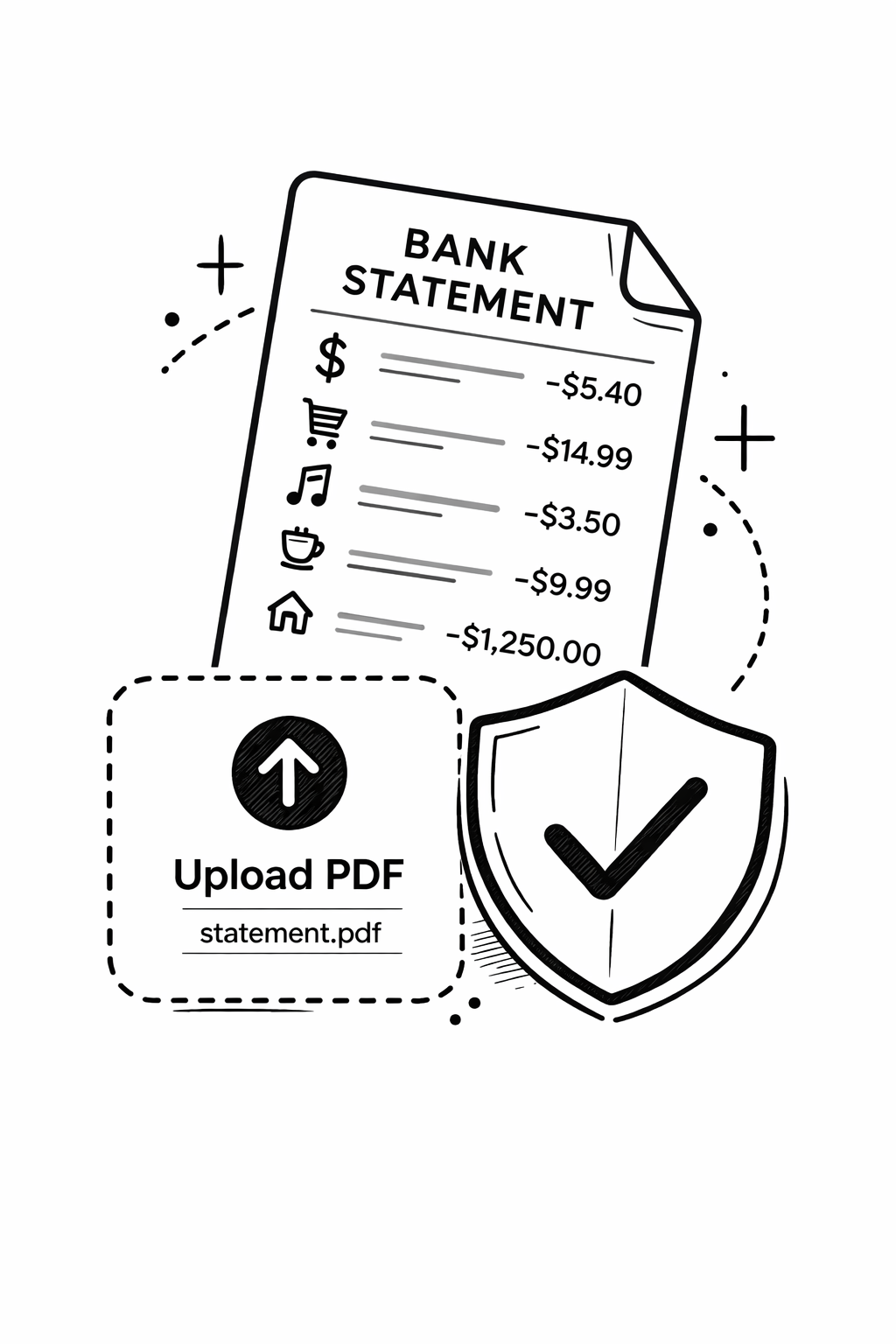
Easier approach: Instead of manually exporting CSV from your bank and wrestling with Excel formatting, upload your bank statement PDF to mybankstatementanalysis.com. The AI extracts every transaction, categorizes them, and gives you a clean Excel or CSV export — with all formatting issues handled automatically. Free for up to 3 pages.

FAQ

How do I paste CSV data into Excel without it going into one column?
Copy the CSV data, paste it into Excel, then select the column and go to Data → Text to Columns. Choose 'Delimited', select 'Comma' as the delimiter, and click Finish. Excel will split the data into separate columns. Alternatively, save the data as a .csv file first and open it directly in Excel.
How do I open a CSV file in Excel without losing formatting?
Don't double-click the CSV file. Instead, open Excel first, go to Data → From Text/CSV (or Data → Get Data → From File → From Text/CSV), select your file, and use the import preview to set column types — especially Text for account numbers, zip codes, and reference IDs that have leading zeros.
Why does Excel change my numbers when I open a CSV?
Excel auto-detects data types and converts anything that looks like a number, date, or scientific notation. This strips leading zeros from zip codes (07001 → 7001), reformats dates, and turns long numbers into scientific notation. The fix is to import via the Data tab and set affected columns to Text type.
How do I paste tab-separated data into Excel?
Tab-separated data (TSV) pastes directly into Excel columns with no extra steps — just Ctrl+V (or Cmd+V on Mac). Excel automatically recognizes tabs as column separators. If the data still lands in one column, go to Data → Text to Columns and select 'Tab' as the delimiter.
Can I convert a bank statement PDF to CSV for Excel?
Yes. You can use an AI-powered bank statement analyzer like mybankstatementanalysis.com — upload your PDF and it extracts all transactions, categorizes them, and lets you export to CSV or Excel format. This is much faster and more accurate than manually copying data.
How do I import a CSV into Excel on Mac?
On Mac, open Excel, go to File → Import → CSV file, select your file, then use the Text Import Wizard to set delimiters and column formats. In newer versions of Excel for Mac, you can also use Data → From Text/CSV for the same result.
Skip the CSV hassle — go straight from PDF to Excel

Upload your bank statement PDF. The AI extracts all transactions, categorizes spending, and exports a clean spreadsheet — no delimiter issues, no lost formatting.
Analyze My Bank Statement Free →
No account required · 3 pages free
Continue reading
What Does YTD Mean on a Paycheck? Every Field Explained
Guide7 min read
What Does YTD Mean on a Paycheck? Every Field Explained
YTD stands for Year-to-Date. Here's what every YTD field on your pay stub means — gross pay, net pay, taxes, and deductions — with a real sample paycheck.
How to Do Bank Statement Analysis: The Complete Guide (2026)
Guide12 min read
How to Do Bank Statement Analysis: The Complete Guide (2026)
Step-by-step: from manual Excel methods to AI-powered tools that categorize everything in 30 seconds.
Best Bank Statement Analyzers in 2026 (Free & Paid)
Comparison8 min read
Best Bank Statement Analyzers in 2026 (Free & Paid)
We tested every major bank statement analyzer tool so you don't have to. Honest pros, cons, and scores.