How to Get a Bank Statement from Capitec App (Step by Step)
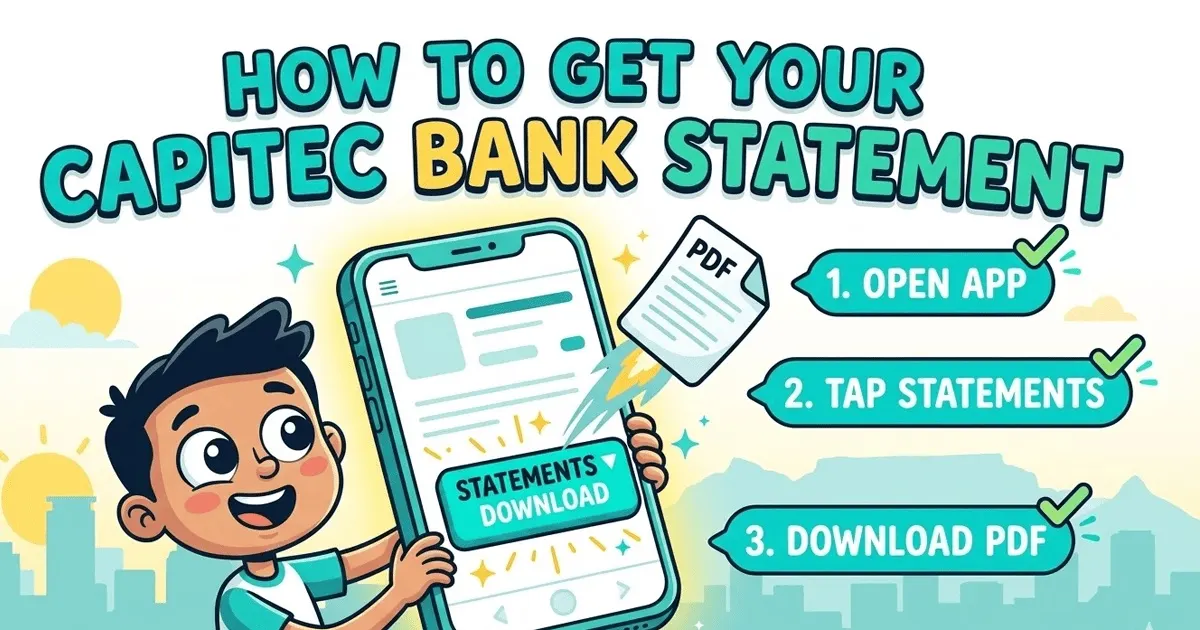
Open the Capitec app → tap your account → tap Statements → select a date range → tap Download. Your PDF will save to your device instantly.
Capitec makes it easy to download your bank statement — no branch visit needed for most requests. Here are all the ways to get your statement, whether you need it for a loan application, visa, tax submission, or just to check your spending.
Method 1: Capitec app (fastest)
This is the easiest way. Statements downloaded from the app are usually not password protected and are available immediately.
- 1Open the Capitec Banking app on your phone
- 2Tap your transaction account or savings account
- 3Scroll down and tap "Statements"
- 4Set your start date and end date (up to 12 months back)
- 5Tap "Download" — the PDF saves to your device
- 6Share or open the PDF from your downloads folder
Method 2: Capitec Internet Banking
If you prefer a desktop browser or don't have the app:
- 1Go to www.capitecbank.co.za and click "Internet Banking"
- 2Log in with your username and password (set up via the app)
- 3Select your account from the dashboard
- 4Click "Statements" in the account menu
- 5Choose your date range and click Download PDF
Method 3: Capitec branch
For statements older than 12 months, or if you need an officially stamped copy:
- 1Visit any Capitec branch with your SA ID or passport
- 2Ask for a printed bank statement for the date range you need
- 3The teller can also email a PDF to your registered email address
- 4Stamped statements are available for a small fee (confirm at the branch)
Is your Capitec statement password protected?
Statements downloaded directly from the Capitec app or Internet Banking are usually not password protected. However, if you received a PDF by email and it asks for a password, try:
If you know the password and want to remove it permanently, use our free PDF unlock tool — it runs entirely in your browser and never uploads your file.
What to do with your Capitec statement
Once you have your PDF, you can:
- Submit to a bank or lender for a loan or vehicle finance application
- Attach to a rental application as proof of income
- Upload for a visa application as proof of funds
- Submit to SARS as supporting documentation for your tax return
- Analyze your spending — upload here to see exactly where your money goes
How to export Capitec transactions to CSV
Capitec's app and Internet Banking only issue statements as PDF — there is no native CSV or Excel export. To get a transaction CSV (for Excel, Google Sheets, QuickBooks, Xero, Sage, or any accounting tool), you convert the Capitec PDF after downloading it.
- 1Download the PDF from the Capitec app. Use the steps above — app → Statements → date range → Download. A 12-month range works if you need a full year of transactions in one file.
- 2Upload the PDF to a converter. Drag the Capitec PDF into our bank statement to CSV converter. It reads every transaction row — date, description, amount, running balance — and produces a clean spreadsheet.
- 3Download the CSV. The CSV opens directly in Excel, Numbers, or Google Sheets. For QuickBooks use the QBO export option; for Xero or Sage, the CSV import works as-is with the standard mapping.
The converter works with every Capitec statement layout (Savings, Transact Account, Business Account, Credit Card). Tools that advertise "bank2csv" style conversion for South African banks typically run the same kind of table-extraction under the hood — what differs is accuracy on multi-line descriptions and column alignment.
Frequently asked questions
How do I get a bank statement from the Capitec app?
Open the Capitec app → tap your account → tap Statements → select the date range → tap Download. The PDF will save to your phone. This is the fastest method and the statement is usually not password protected.
How do I get a 3-month Capitec bank statement?
In the Capitec app, go to Statements → set the start date to 3 months ago → set the end date to today → tap Download. You'll get a single PDF covering all 3 months. Alternatively, download each month separately.
Is my Capitec bank statement password protected?
Statements downloaded from the Capitec app are usually not password protected. If you received a statement by email and it has a password, try your SA ID number (13 digits) or date of birth in DDMMYYYY format.
How far back can I get Capitec bank statements?
The Capitec app shows up to 12 months of statements. For older statements (older than 12 months), visit a Capitec branch or call Capitec support on 0860 10 20 43.
Can I get a Capitec bank statement for a loan application?
Yes — download your last 3 months of statements from the app and upload them here. You'll get a categorized summary showing income, expenses, and net cash flow — useful for lenders evaluating your application.
What if I don't have the Capitec app?
You can get your statement via Capitec Internet Banking at www.capitecbank.co.za, by visiting any Capitec branch, or by calling 0860 10 20 43 to request a statement by email.
How do I export my Capitec bank statement to CSV?
Capitec only provides statements as PDF — there is no built-in CSV export. To get a CSV, download the PDF from the Capitec app or Internet Banking, then convert it using a bank statement PDF-to-CSV tool. Upload the Capitec PDF to our converter and you'll get a clean CSV with date, description, amount, and running balance columns ready for Excel, Google Sheets, or QuickBooks.
How do I get a 12-month Capitec bank statement?
Open the Capitec app → Statements → set the start date to exactly 12 months ago and the end date to today → tap Download. The app allows up to 12 months of statements. For anything older than 12 months, call Capitec on 0860 10 20 43 or visit a branch — they can issue historical statements going back several years.
How do I upload a Capitec bank statement PDF for analysis?
Download the PDF from the Capitec app (Statements → Date range → Download). Then drag the PDF into our uploader — no password needed if it came from the app. You'll get categorized transactions, monthly income and spending totals, subscription detection, and CSV/Excel export in about 30 seconds.
Can I get a Capitec transaction CSV for QuickBooks or Xero?
Yes. Download your Capitec statement PDF, then upload it to our converter to produce a CSV. From there you can import directly into QuickBooks, Xero, Sage, or any accounting tool that accepts CSV. We also support direct QBO, OFX, and QIF export if your accounting software prefers those formats.