Bank statement to QBO converter
Convert a bank statement PDF to QBO free — upload the statement, get a .qbo file you upload straight into QuickBooks Online — free for your first statement.
See the difference
From messy PDF to clean QBO
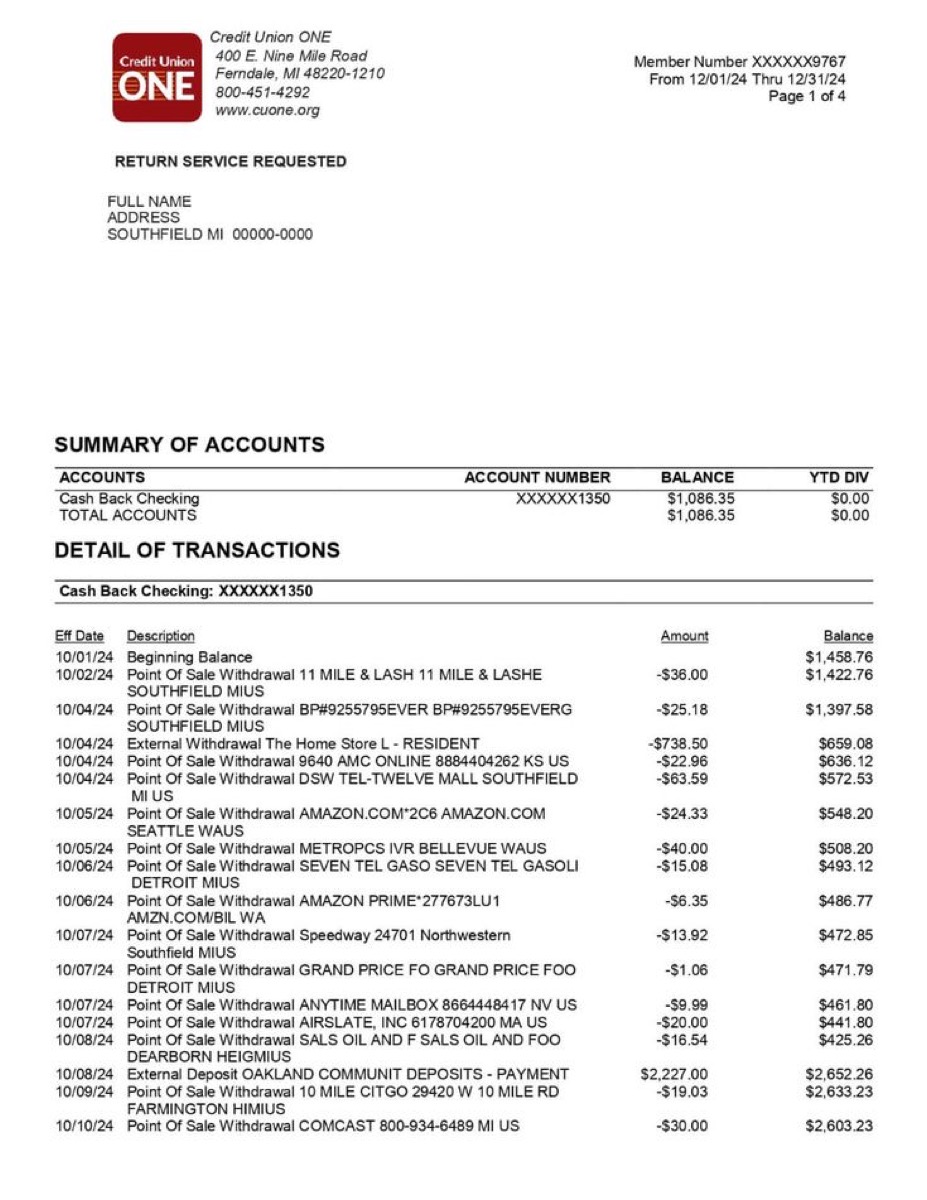
bankstatement.pdf
<STMTTRN>
  <TRNTYPE>DEBIT</TRNTYPE>
  <DTPOSTED>20251015</DTPOSTED>
  <TRNAMT>-67.42</TRNAMT>
  <NAME>WHOLEFDS MKT #10247</NAME>
</STMTTRN>
<STMTTRN>
  <TRNTYPE>DEBIT</TRNTYPE>
  <DTPOSTED>20251015</DTPOSTED>
  <TRNAMT>-4.75</TRNAMT>
  <NAME>STARBUCKS #8291</NAME>
</STMTTRN>
<STMTTRN>
  <TRNTYPE>DEBIT</TRNTYPE>
  <DTPOSTED>20251014</DTPOSTED>
  <TRNAMT>-1850.00</TRNAMT>
  <NAME>ZELLE TO LANDLORD</NAME>
</STMTTRN>
<STMTTRN>
  <TRNTYPE>CREDIT</TRNTYPE>
  <DTPOSTED>20251014</DTPOSTED>
  <TRNAMT>2847.63</TRNAMT>
  <NAME>PAYROLL - ACME CORP</NAME>
</STMTTRN>
bankstatement.qbo
How it works
Three steps to a clean QBO file
Upload your PDF
Drag and drop your bank statement — downloaded from your bank or scanned from paper. Both work.
AI extracts every transaction
Our AI reads each row, identifies dates, merchants, and amounts, then classifies spending into 19 categories.
Download QBO & import into QuickBooks
Export .qbo and upload it in QuickBooks Online under Banking → Upload transactions. On QuickBooks Desktop export IIF instead and use File → Utilities → Import → IIF Files.
1.Upload your PDF
Drag and drop your bank statement — downloaded from your bank or scanned from paper. Both work.
2.AI extracts every transaction
Our AI reads each row, identifies dates, merchants, and amounts, then classifies spending into 19 categories.
3.Download QBO & import into QuickBooks
Export .qbo and upload it in QuickBooks Online under Banking → Upload transactions. On QuickBooks Desktop export IIF instead and use File → Utilities → Import → IIF Files.
Why us
Not just a PDF extractor — a bank statement QBO exporter
Preview
What the QBO export looks like
A structured Web Connect file — every transaction carries a type, a date, an amount, and its own id.
The problem
Why you need a PDF to QBO converter
PDF to QBO: get your bank transactions into QuickBooks
Converting a bank statement PDF to QBO is the shortest route to getting transactions into QuickBooks when the bank feed is unavailable, broken, or simply does not reach far enough back. The .qbo Web Connect file carries the same fields QuickBooks would have received from the feed itself — transaction type, posted date, amount, payee and a unique id — so nothing has to be mapped by hand after the import.
The part that most often goes wrong in a PDF-to-QuickBooks conversion is the date. Banks write dates differently around the world: MM/DD/YYYY in the US, DD/MM/YYYY across the UK and Europe, YYYY-MM-DD in parts of Asia. The converter detects the convention your statement actually uses and rewrites every date into the YYYYMMDD form the OFX specification requires, which is what stops the silent day/month swap that turns a March transaction into a December one.
Amounts and transaction types are handled with the same care. Debits are written as negative values in TRNAMT and credits as positive ones, with currency symbols and thousands separators stripped, because importers reject anything else. Every transaction is given a FITID derived from its own date, amount, and description, so re-importing an overlapping period does not duplicate rows — QuickBooks recognises ids it has already seen and skips them.
Whether the PDF came from your bank's website or was scanned from a paper statement, extraction works the same way: digitally generated PDFs and scanned documents both go through the same pipeline, with OCR applied where the page holds no text layer. Multi-page statements are handled in one pass — upload a quarterly statement and every transaction across every page lands in a single .qbo file, ready to import.
Statement analyzer pricing
Pro
For heavy files and repeat work
- 200 PDF pages per billing cycle
- Unlimited visible transactions per report
- Subscription and recurring charge detection
- Priority support
Business
For lenders, accountants, and teams processing at volume
- 500 PDF pages per billing cycle, then $0.08/page
- REST API access with your own keys
- Unlimited visible transactions per report
- Priority support
FAQ
Bank statement to QBO FAQ
What is a .QBO file?+−
How do I import the file into QuickBooks?+−
Why does QuickBooks reject my .qbo file?+−
Is it really free?+−
Which banks are supported?+−
Will importing create duplicate transactions?+−
Is my PDF secure?+−
Convert your PDF to QBO — free
No account required. Get a .qbo file ready for QuickBooks in under 30 seconds.
Upload PDF & Convert to QBOAlready have a CSV, QIF or OFX file? Convert it directly — no PDF step needed.
Not using QuickBooks? Quicken, GnuCash and Moneydance read OFX and QIF.