How to Categorize Bank Transactions (3 Methods, Fastest First)
Quick answer
Categorizing bank transactions gives you a clear picture of where your money goes each month — and it's required for tax prep, budgeting, and understanding your spending patterns. There are three main ways to do it. Here's each method explained, starting with the fastest.
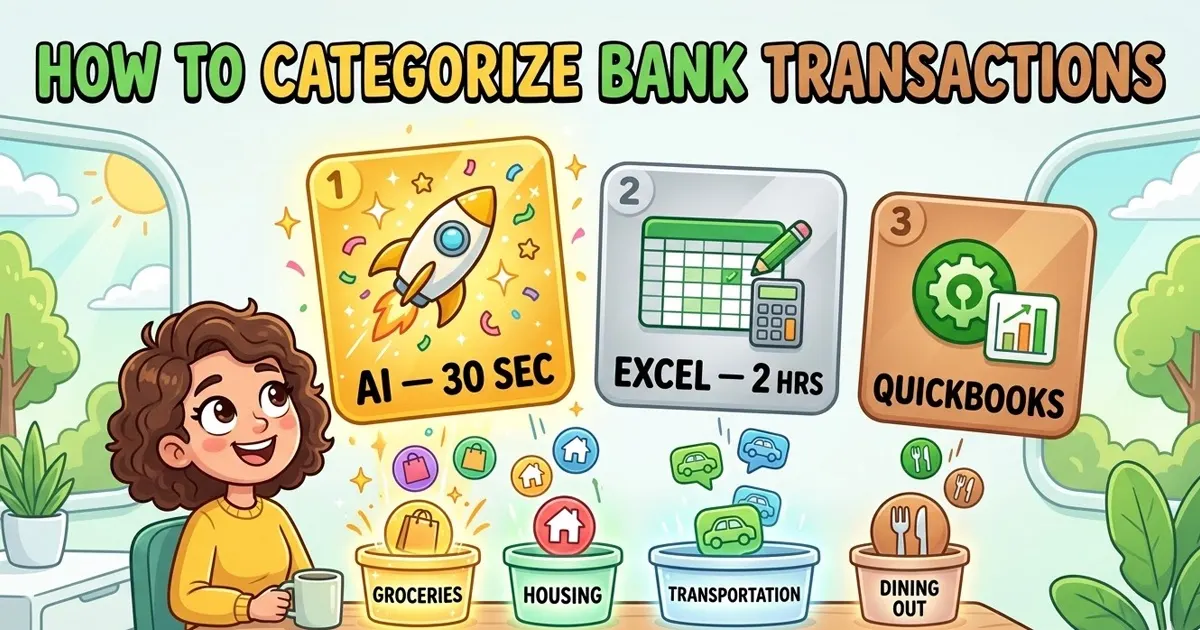
In this guide
- Method 1: AI automatic categorization (30 seconds)
- Method 2: Manual in Excel (1–3 hours)
- Method 3: QuickBooks or Xero (ongoing)
- Standard bank transaction category list
- How to categorize for taxes
- FAQ
AI automatic categorization
FastestTime: ~30 seconds
- Download your bank statement as PDF from your bank's website or app
- Upload the PDF to mybankstatementanalysis.com
- AI reads every transaction, identifies merchants, and assigns categories
- Review your categorized spending dashboard and export CSV
Pros
✓Zero manual work
✓Works with any bank worldwide
✓Detects subscriptions automatically
✓First page free
Cons
✗Requires PDF download
✗Not a live connection (snapshot only)
Manual categorization in Excel
Most flexibleTime: 1–3 hours
- Log into your bank and export transactions as CSV or download statement
- Open in Excel or Google Sheets
- Add a "Category" column next to the description column
- Manually type or select the category for each transaction row
- Create a pivot table to sum totals by category
Pros
✓Full control over category names
✓No third-party tools needed
✓Customizable for any use case
Cons
✗Very time-consuming (100 transactions = 100 manual entries)
✗Error-prone
✗No subscription detection
✗Must be repeated every month
Categorization in QuickBooks or Xero
Best for ongoing useTime: Setup: 30 min + ongoing review
- Open QuickBooks Online or Xero and go to Banking / Bank Feeds
- Connect your bank account via Open Banking (requires your bank to support this)
- Transactions import automatically on a daily basis
- Go to "For Review" tab and confirm or correct the suggested category for each transaction
- QuickBooks/Xero learns your preferences and improves over time
Pros
✓Automatic daily imports
✓Integrates with accounting workflows
✓Tax-ready reports
✓Improves over time
Cons
✗Requires live bank account connection
✗Not all banks supported
✗Costs $30–$100/month
✗Still requires manual review for many transactions
Standard bank transaction category list
Here are the most common categories used by AI tools and accounting software, with examples and tax notes:
How to categorize transactions for taxes
If you're self-employed or running a business, your transaction categories need to map to IRS expense types on Schedule C:
- Advertising — marketing, design, ads
- Car & Truck — gas, parking, Uber if for business (keep mileage log)
- Meals — 50% deductible for business meals with clients
- Office Expenses — supplies, software subscriptions, SaaS tools
- Rent — office rent (not home rent unless home office deduction)
- Utilities — partial deduction if home office
- Professional Fees — accountant, lawyer, consultant
- Insurance — business insurance premiums
Tip: Export your categorized transactions as CSV from mybankstatementanalysis, then filter by business categories in Excel. This gives you a clean expense report for your accountant — or for filling out Schedule C yourself.