
Bank statement to Xero
Bank statement to Xero
Upload a PDF — get a Xero-ready CSV with every transaction extracted and formatted for import .
Choose The Right Tool
Need all export formats?
Use the converter owner page when you want CSV, Excel, QIF, OFX, QBO, and other export options from one workflow.
Open the converter →Need a generic CSV export?
Use the CSV page when the destination is a spreadsheet, script, or another system beyond Xero.
Open CSV conversion →Need QuickBooks instead?
Use the QuickBooks or QBO path if the destination is QuickBooks Online rather than Xero.
Open QuickBooks import →How it works
Three steps to import into Xero
Upload your bank statement PDF
Drop your PDF — digital or scanned. JPG and PNG images also work. Any bank worldwide.
AI extracts every transaction
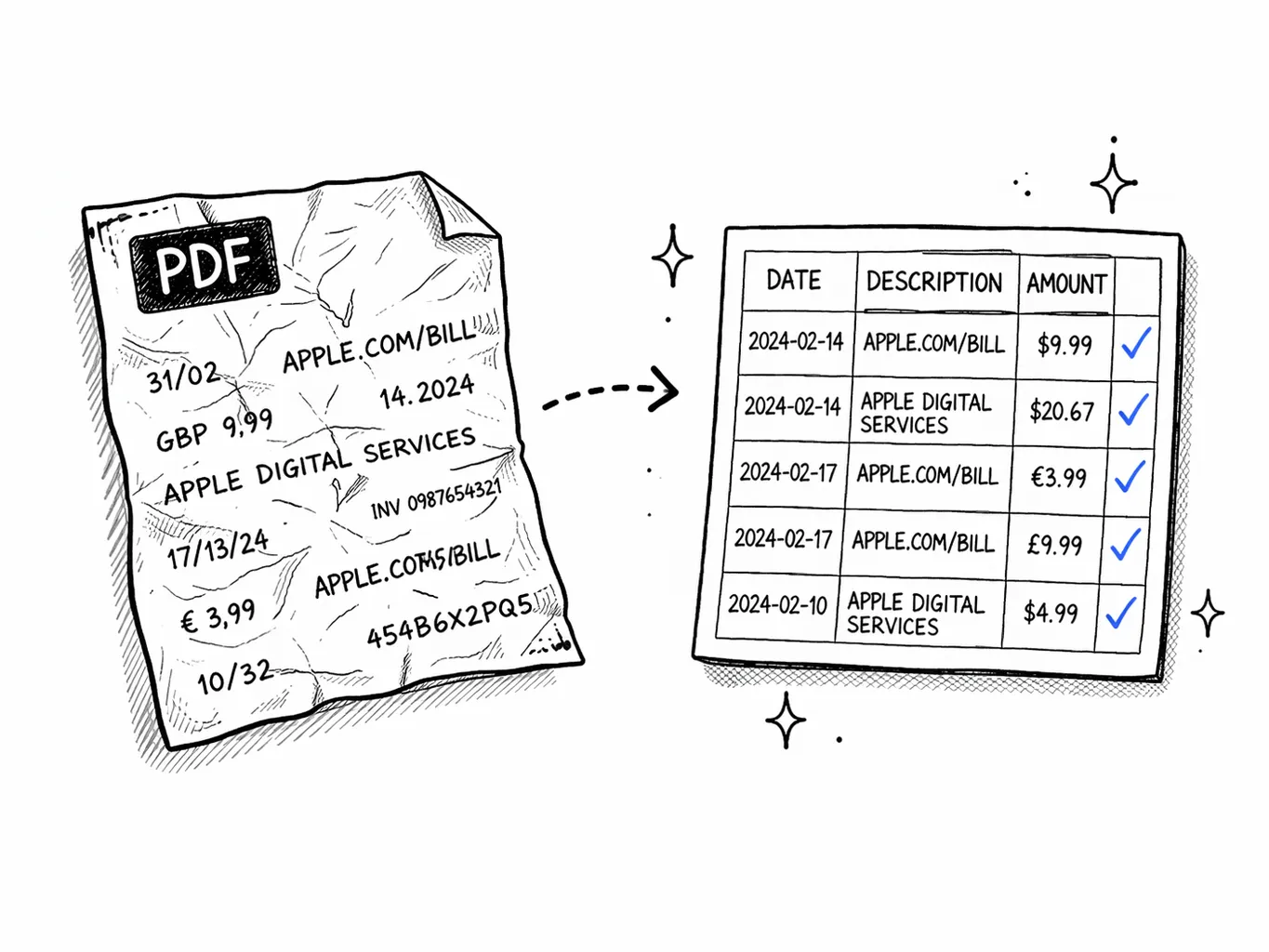
Our AI reads every transaction — date, description, amount — and formats it into a Xero-compatible CSV with signed amounts.
Import into Xero
Download your CSV. In Xero: Accounting → Bank Accounts → Import a Statement. Map columns and import — done in seconds.
Xero-ready format
CSV that maps correctly on the first try
The converter handles the details that trip up manual CSV creation: dates are formatted consistently, debit and credit columns are merged into a single signed amount, and merchant names are preserved as the Description field.
When you import via Accounting → Bank Accounts → Import a Statement, the columns map correctly without reformatting. No more wrestling with date formats or flipped debit/credit signs.
What you get
CSV formatted for Xero
Every column structured exactly how Xero expects it — no reformatting needed.
Consistent dates
Dates normalized to DD/MM/YYYY or your preferred format — no mixed date styles from different banks.
Signed amounts
Debits as negative, credits as positive in a single Amount column — exactly how Xero reads it.
Clean descriptions
Merchant names extracted and cleaned — no truncated codes or garbled abbreviations.
Who needs bank statement to Xero
Anyone importing transactions from PDF statements into Xero.
Bookkeepers
Import client bank statements into Xero without manual data entry.
Accountants
Batch-import statements for reconciliation, BAS lodgement, and year-end.
Small business owners
Get your bank transactions into Xero yourself — no bookkeeper needed.
Historical backfill
Import old statements that predate your Xero bank feed connection.
Import any bank statement into Xero
Xero does not accept PDF bank statements directly — it requires a structured file for manual imports. The most reliable method is aCSV filewith Date, Description, and Amount columns — exactly what this tool produces. Upload your bank statement PDF, and AI extracts every transaction into a CSV that matches Xero's expected column structure.
This workflow is essential when your bank isn't supported by Xero's automaticbank feed, when you need to import historical statements that predate your feed connection, or when you're onboarding a new client whose books need backfilling. Rather than typing transactions by hand, you get a clean import file in seconds.
It works with statements from any bank worldwide — Barclays, HSBC, Lloyds, NatWest, ANZ, Westpac, Commonwealth Bank, Chase, Deutsche Bank, and thousands more. Whether the PDF was downloaded digitally orscanned from paper, the AI extraction handles both. Bookkeepers, accountants, and small business owners use this to cut hours of data entry down to a 30-second upload.

Secure
Your PDF is processed in memory and never saved to disk. All data is encrypted in transit.

Private
We never sell or share your financial data. Anonymous uploads are auto-deleted after 7 days.

Transparent
No hidden fees, no account required. Try it without an account, or create a free account for 1 analysis per month.
Pricing
Start with one report
Pay once when you need one full result. Subscribe only when statement work becomes regular.
- All transactions unlocked for this report
- Categories, charts, and subscription detection
- CSV and Excel exports included
- No renewal, no account required
FAQ
Bank statement to Xero — FAQ
Ready?
Upload one statement.
Get the full picture.
No credit card. No account. Drop a PDF and see every transaction categorized in 30 seconds.
Try it free →Related reading
Import Bank Statement to Xero / QuickBooks
Step-by-step guide to importing CSV files into Xero and mapping transaction categories.
Bank Statements for Self-Employed
What HMRC and lenders want to see from sole traders and freelancers.
Bank Statements for Self Assessment
Using bank data to calculate income and expenses for your UK tax return.